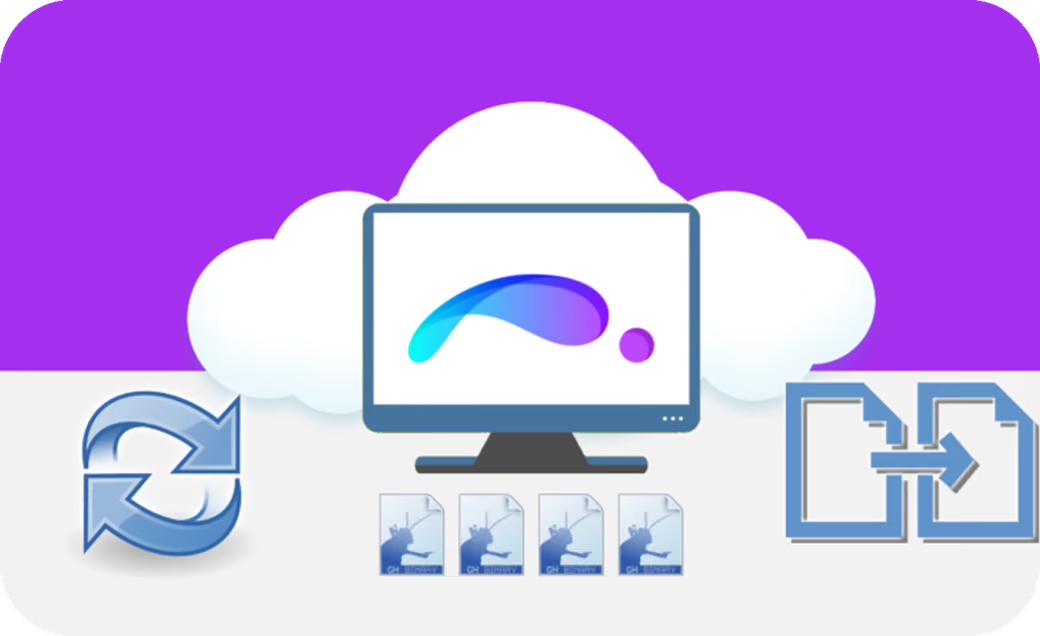
The latest ShapeDiver platform update makes it easier to update existing models by copying and loading existing scene settings into a new model.
A Growing Set Of Viewer Features
Over the past few months, we have added many new features to the ShapeDiver viewer. In particular, you might have noticed the many new scene settings, from lights and shadows to environment settings and camera controls.
You have been many to appreciate and give amazing feedback about those additions. As always, our thanks go to the community for helping us prioritize and build the most useful features!
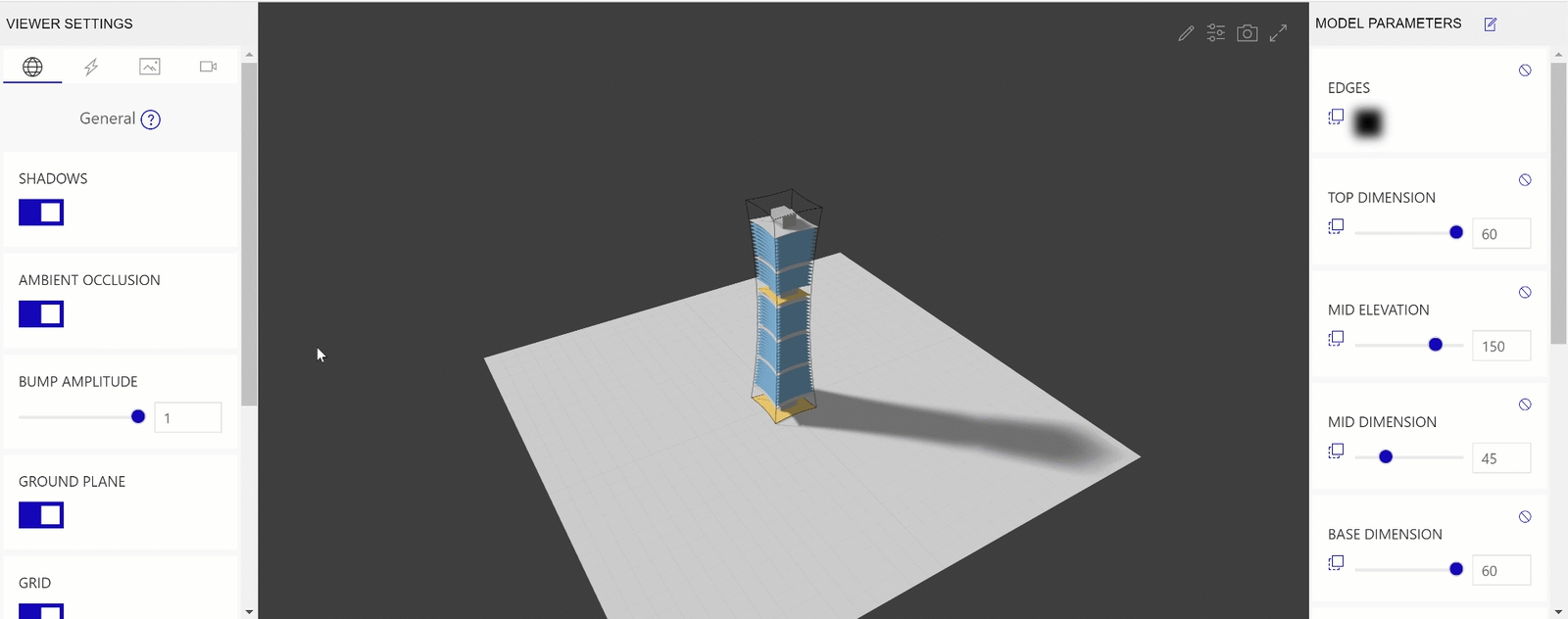
Setting up the scene in the ShapeDiver viewer.
However, all these new settings came with a flip side. Indeed, with so many options, it can take a while to set up the perfect scene! Not pointing fingers or anything, but we heard of users spending hours moving around lights until they reach the Graal… Only to do it all over again when they update the Grasshopper definition.
Needless to say, we got many requests for a way to save those settings and re-use them for later models. We are happy to announce that we’re finally granting that wish.
There are two ways to copy the settings stored in an existing model.
Copy Model Settings
To begin with, the option for copying model settings is now available on the standard model “Upload” page. After entering general information about your upload, the “Model Settings” tab lets you pick a previous model to copy settings from. The form lets you search through your old models, but also the public models uploaded by other users to the platform.
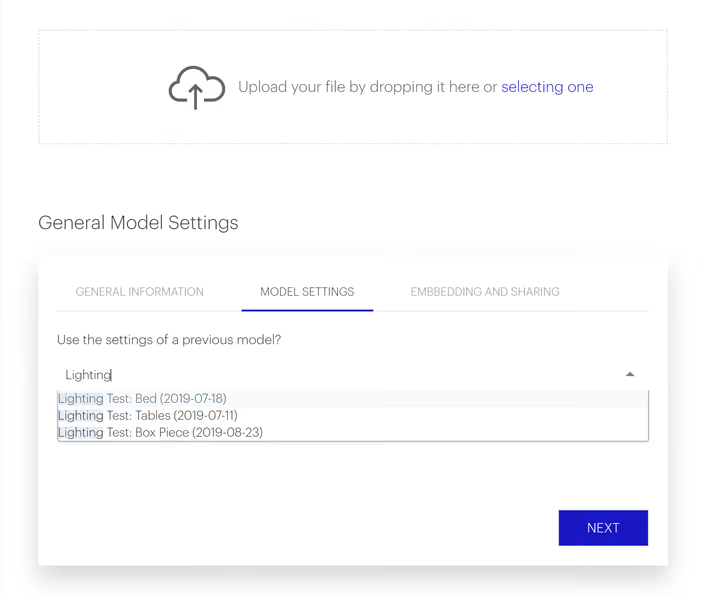
Copy model settings
Re-Upload Models
In case you need to upload a new version of one of your models, simply go to your ShapeDiver Dashboard and locate the model you’d like to update and use the new re-upload option.
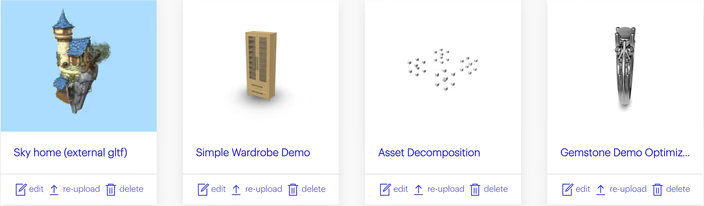
The option is available on each model card, and directly on the model pages as well.
When re-uploading a model, the form automatically fills the viewer settings from the previous version of the model. Additionally, general information about the model (name, tags and description) gets pre-filled as well.
Full Model Versioning
At the moment, only the viewer settings can be loaded in a new model. In the next few weeks, you will also be able to copy parameter settings. In other words, it will be possible to copy the name, order and visibility of model parameters from a previous model.
This addition especially makes sense when it comes to versioning a specific model. As a matter of fact, one of our goals for the next few months is to support full version control for ShapeDiver models. But that’s only a small part of the big plans we have for the rest of the year. Stay tuned!
Do you have doubts or would like us to expand on any of the topics discussed in this blog post? Then head to our Forum and let us know: forum.shapediver.com
Workspace
Your workspace on the platform is where you organize your models, decide who can use them, and share or embed them.